A daily cause list shows matters scheduled before a court on a particular date. Use it to identify the court, bench and item number for a hearing, then check the court's latest notices before you travel or join remotely. A saved next-hearing date is useful for planning, but it does not establish the current courtroom board or guarantee that a matter will be taken up.
Start with the right official source
- District and taluka courts: start at eCourts Services and select the relevant location and court.
- High Courts: use the relevant court's official website. For example, the Delhi High Court cause-list page is linked from its homepage alongside the display board and judges' roster.
- Supreme Court: use the Supreme Court of India cause-list service. Check the court's listing notices for changes to benches or sittings as well.
Bookmark the official page for each court you attend. Search results and forwarded PDFs can point to an older list, a different bench or the wrong date.
Walkthrough: find a district court cause list
- Open eCourts Services and choose the state, district and court complex for your matter.
- Open Cause List. Select the court name and hearing date; complete the CAPTCHA if prompted.
- Choose the civil or criminal list as appropriate. Check the selected court and date before reading the results.
- Locate the case number, registration year and parties. Match more than a party name where similarly named matters exist.
- Record the list date, court and item number in your hearing note. Keep the official link or downloaded list with that note.
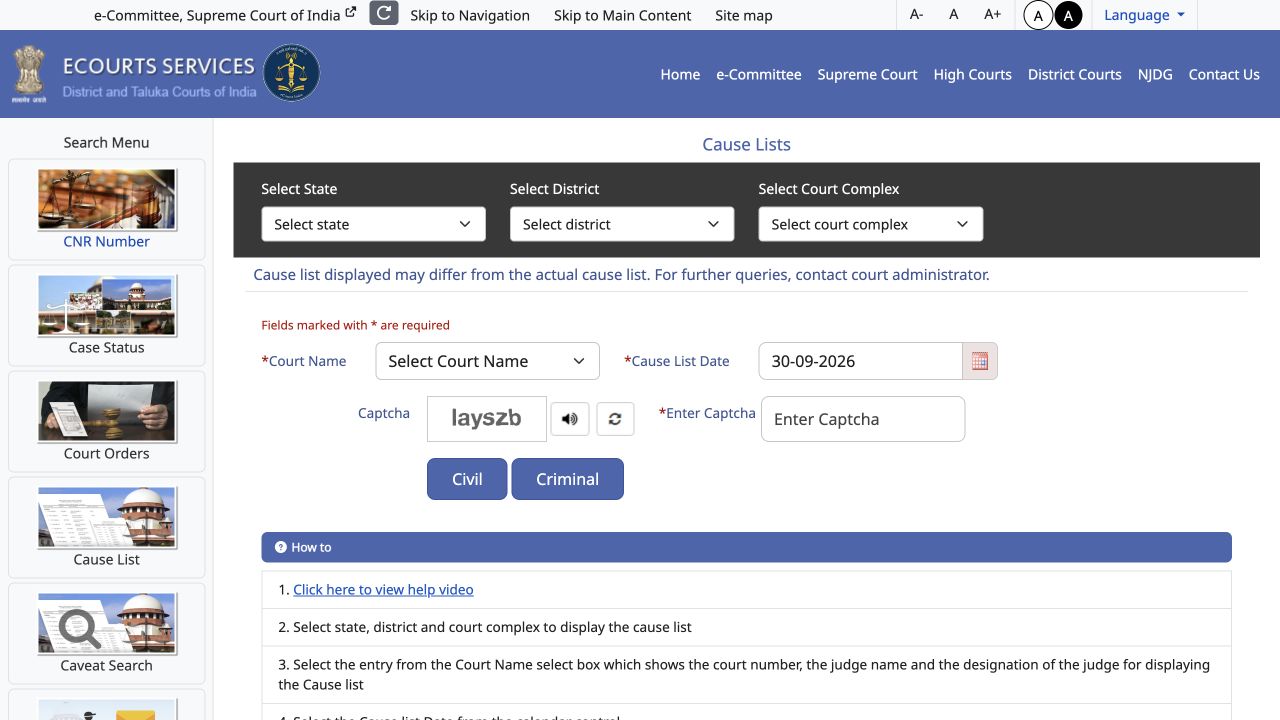
The official eCourts Services app help explains court selection, cause lists and case searches. If you need the case history, search using the 16-character alphanumeric CNR without spaces or hyphens, or use an available alternative such as case number. A case-status search and a cause-list search answer different questions.
For the official interface screens and training material, use the e-Committee's eCourts Services app resources. Screens and available fields can change; follow the live portal's labels.
Walkthrough: High Court and Supreme Court lists
On a High Court site, open the cause-list section, choose the relevant date and bench or court, and read the heading before searching within a PDF. A High Court may publish separate lists for different categories or sittings, so retain the list's complete title in your note. Delhi High Court provides separate links to the cause list, display board and roster on its official homepage.
For Supreme Court matters, begin at the official cause-list page and select the applicable list and date. The government's Supreme Court cause-list service guide identifies daily, advance, registrar, chamber and terminal lists. Choose the one relevant to your proceeding. Check listing notices for non-sittings, deletions and bench changes; an earlier saved list may need correction.
Read a listed matter: a fictional worked example
Illustration only: the following names, numbers and court are invented. This is a reading aid, not a court screenshot or a real listing.
| Field | Example | What to record |
|---|---|---|
| Date and court | 1 October 2026 · Court 3, Example District Court | The exact hearing date and courtroom shown in the heading |
| Item number | 24 | A position on this list; not a promised hearing time |
| Case | Civil Suit 123/2025 | Case type, number and year together |
| Parties | Example Trading v. Sample Supplies | Confirm that the entry matches your matter |
| Purpose, if shown | Arguments | Preparation needed, checked against the last order |
A useful diary note would be: “1 October: Court 3; item 24; Civil Suit 123/2025; arguments; check latest board and notices before attending.” Read local abbreviations against the court's legend or registry guidance. Avoid treating an unfamiliar abbreviation as a universal procedural meaning.
Daily, supplementary and revised lists
A supplementary list adds matters to the published board, while a revised list may change an earlier version. Read the heading and any directions about how the lists will be taken up. Do not assume every supplementary matter is heard first. Keep the main list and relevant additions together so that you do not miss a new entry or deletion.
Build two checks into the office routine: check the available list before the hearing day, then check again before attendance. There is no single publication time that applies to every Indian court. If your case-status record gives a date but you cannot find the matter, check the court, date, case number, list category and notices, then ask counsel or the registry to resolve the discrepancy. Absence from one online result is not confirmation that attendance is unnecessary.
How MyAdvoMate prepares next-day alerts
MyAdvoMate's daily cause-list reminder groups hearings saved in your case workspace for the next day into a PDF. It is an office planning report, not a copy of a court's official board. The report does not establish the official item number or promise immediate detection of every supplementary listing.
- Add or import your matter in Cases and confirm its court, case identifier and next-hearing date against the official record. Keep manually entered dates current.
- In the web app, open Settings → App Preferences → Email Notifications and enable Important alerts & deadlines. Wait for the saved indicator.
- Check your account email and active subscription or eligible trial. Email reminders depend on these details and the alert preference.
- For WhatsApp delivery, keep the account phone number accurate and check that your plan includes WhatsApp notifications. Delivery also depends on the messaging service being available.
The current scheduled reminder is set for 6:30 pm India time, for next-day hearings. Scheduling and delivery can be delayed or fail. No report is sent when the workspace has no matching next-day hearings, and demo or sample matters are excluded. If a reminder is missing, inspect the saved hearing date, account status, notification preference and contact details, and check your email spam folder. Continue checking the official court source regardless of whether an alert arrives.
Prepare your next hearing
Keep the official listing, last order, documents, preparation tasks and advocate allocation with the case. After the hearing, record the outcome and confirm the next date. Explore MyAdvoMate case management, view the product walkthrough, or start a trial to try the workflow with a sample matter.
Editorial note: This is a practical product and court-navigation guide. Court directions and official records take priority; confirm attendance and procedural questions with the advocate responsible for the matter.